
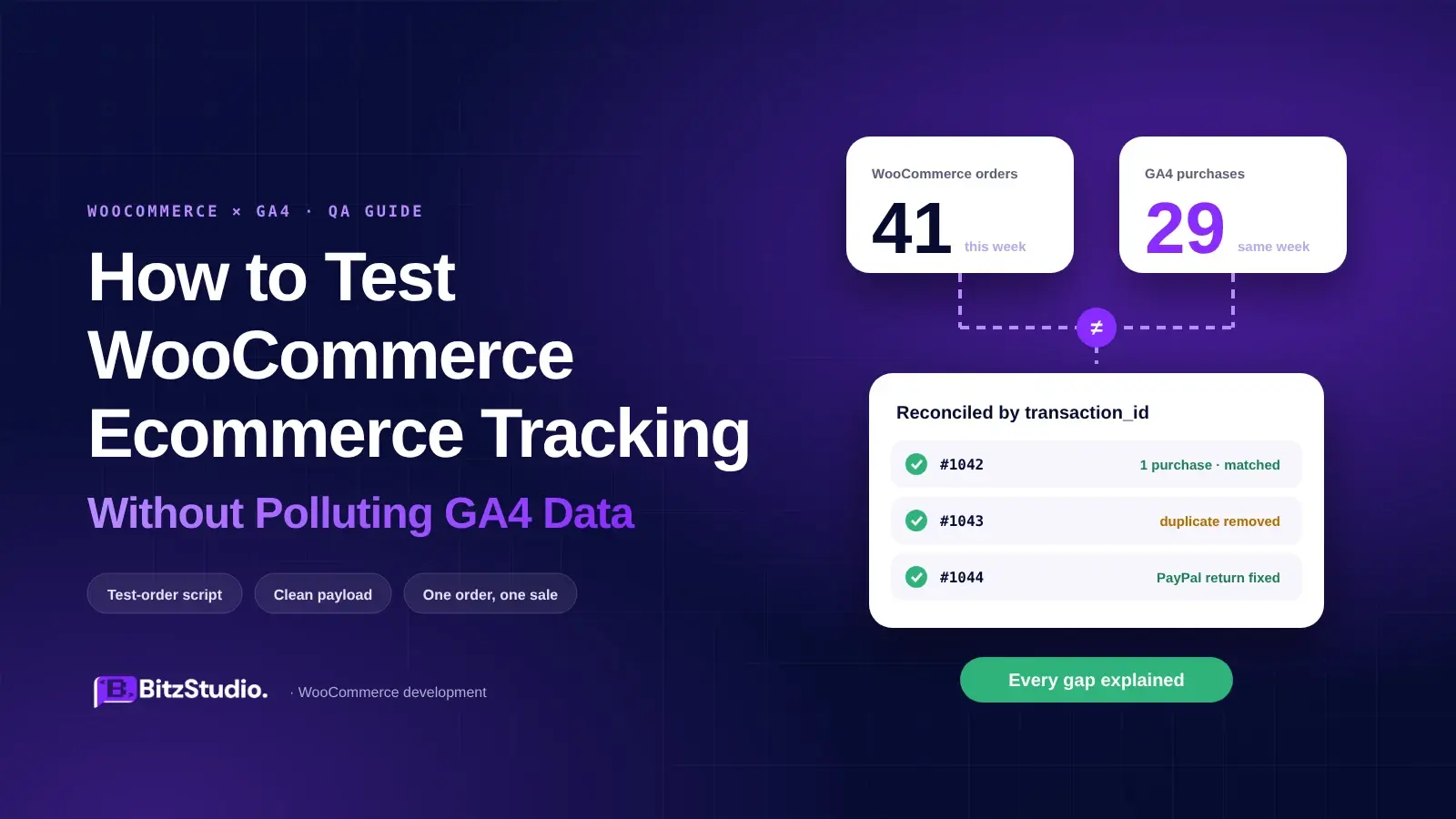
WooCommerce shows 41 orders this week. GA4 shows 29. That gap can come from consent, a payment gateway, duplicate tags, a checkout change, or a bad event payload. The only authentic way to figure out is to test the store like a customer and compare what WooCommerce records with what GA4 receives. This guide gives a brief on how to test woocommerce ecommerce tracking with a repeatable order script, clean browser sessions, and checks that go beyond “the event fired.”
How to Test WooCommerce Ecommerce Tracking Without Dirtying Reports
Determine where the test data should land before placing an order. A live GA4 property mirrors production, but test purchases can affect reporting. GA4 data-deletion tools are not designed to erase one clean purchase event and its revenue from standard reports after the fact.
The safest and cleanest option is a staging store with its on GA4 properties. If you are supposed to test production, enable debug mode for your device and use a Developer Traffic data filter. Google gives a warning that an active exclude filter permanently removes matching developer traffic from processed Analytics data, so validate it first.
Start With a Clean Test Browser
A surprising amount of woocommerce tracking not working diagnosis starts with a browser that never represented a real shopper. Logged-in admins, extensions, consent state, and cached sessions can change what fires.
Use a fresh browser profile or private window. Log out of WordPress, disable ad blockers for the test, and accept the banner for the consented path. WooCommerce notes that pageviews are not tracked for logged-in admin users and recommends Tag Assistant for testing.
Before the first click, record:
- the browser and device type;
- the GA4 property and Measurement ID you expect to receive the data;
- the payment gateway you will use;
- the exact product, variation, coupon, shipping method, and order total.
That small test record matters later when one gateway works and another does not.
Use a Written Test-Order Script
A proper test needs a fixed sequence you can repeat after updates and checkout changes. Keep the WooCommerce order number beside the GA4 transaction ID so you can compare the two systems directly.
| Step | Event to see | What to check in it |
|---|---|---|
| View a product | view_item | Correct item_id, name, price, currency, variation data |
| View a variation | view_item or updated item data | Same identifier strategy, correct item_variant |
| Add to cart | add_to_cart | Correct item, quantity, value |
| Change quantity | Cart event or updated cart data | Quantity and value update correctly |
| Remove item | remove_from_cart | Correct item and quantity removed |
| Apply a coupon | Relevant ecommerce payload | Coupon value and resulting totals |
| Begin checkout | begin_checkout | Cart items, value, currency |
| Pick shipping | add_shipping_info | Shipping choice and current totals |
| Pick payment | add_payment_info | Payment method context if your setup sends it |
| Place order | purchase | One event, correct order number, value, tax, shipping, currency, items |
Check the Payload, Not Just the Event Name
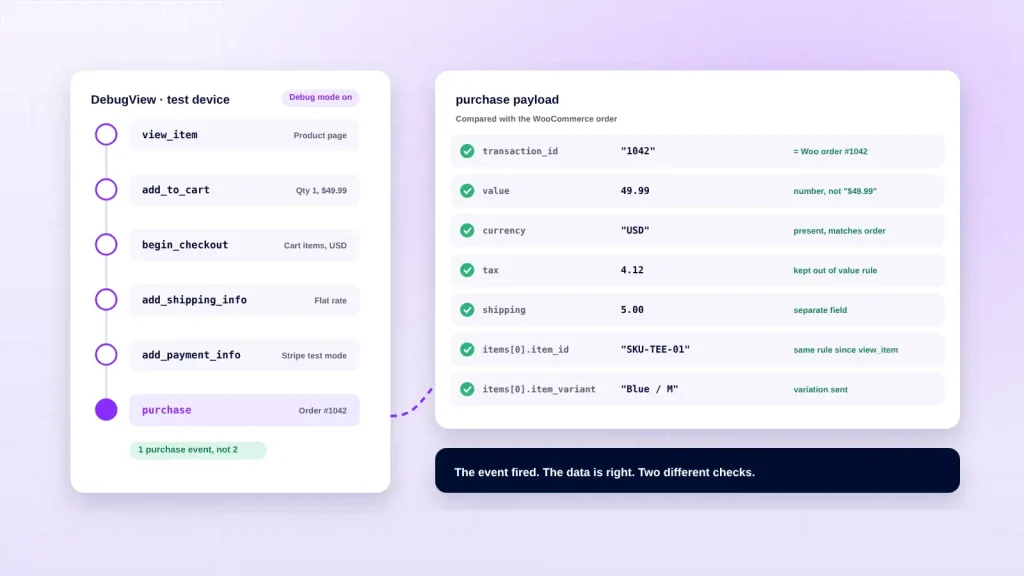
Seeing purchase in DebugView proves that an event has arrived. It does not where ever prove the usability of revenue or product data.
When you test woocommerce purchase event data, open the purchase payload and compare it with the WooCommerce order. Google’s ecommerce documentation expects purchase data such as transaction_id, value, currency, tax, shipping, and an items array. Google also recommends setting currency when value is sent.
Check these fields carefully:
- value is numeric, not text such as “49.99” or “$49.99”;
- currency is present and matches the order;
- transaction_id equals the WooCommerce order number or the exact identifier your tracking spec defines;
- item_id uses the same rule from product view through purchase, such as SKU everywhere or product ID everywhere;
- variable products include useful item_variant data;
- tax and shipping are not silently mixed into the wrong value definition.
A broken payload can produce clean-looking event counts and bad revenue reports.
Test Each Payment Gateway Separately
Payment flows usually are not interchangeable. A store can track Stripe correctly and still lose purchases from another gateway.
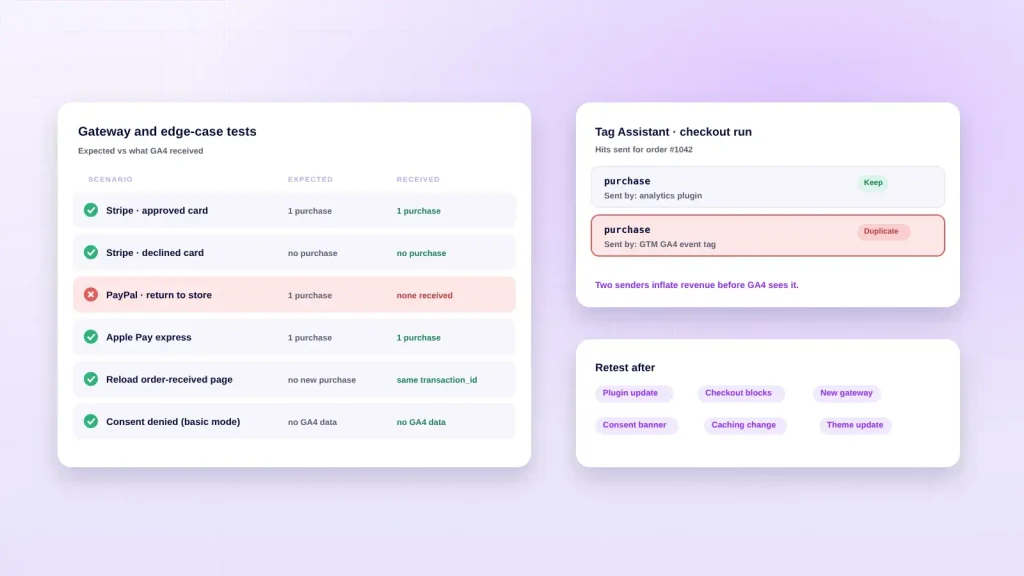
For Stripe, use test mode and run both an approved payment and a decline. WooCommerce’s current Stripe documentation supports test transactions and test cards for successful and declined scenarios. A declined payment must not create a purchase event.
Then test PayPal or any other off-site flow. PayPal uses return and cancel URLs in redirect-based checkout flows, so browser tracking that depends on the shopper reaching the merchant’s final page deserves its own test.
Test Apple Pay or Google Pay too if your store offers them because express buttons can skip standard checkout steps. For bank transfer or cash on delivery, define whether an “on hold” order should count before comparing totals.
Prove Failed and Repeated Orders Do Not Inflate Revenue
A safe and clean purchase often requires one order that should count and one order that should not count. Fake or force a failure with a decline test or cancelled off-site payment and confirm no purchase occurred.
Now complete one order that is valid, record its transaction_id, reload the order-received page, and open the order again from any customer link that reaches the same confirmation view.
Google states that Analytics deduplicates web purchase events that use the same transaction ID. That only helps if the identifier is present and unique to the order. Your store should not generate a fresh transaction ID just because the confirmation page loaded again.
Look for Two Senders Before You Blame GA4
Duplicate revenue often starts before GA4. One plugin sends ecommerce data, GTM sends it again, and a theme or custom snippet loads another Google tag.
Open Tag Assistant and run checkout once. If you see two purchase hits, identify which implementation sent each one. Common causes are an analytics plugin plus GTM, Site Kit plus another GA4 integration, or hard-coded gtag.
For ga4 debugview woocommerce testing, DebugView is best for confirming that your device’s events reached GA4. Tag Assistant is better for seeing what fired in the browser and which tag sent it. Google confirms that Tag Assistant can enable debug mode for a personal device so its events appear in DebugView.
Retest After Switching to Cart or Checkout Blocks
A checkout redesign can break tracking without changing the payment gateway or GA4 property. WooCommerce made Cart and Checkout blocks the default experience, and current WooCommerce Analytics extensions now document block compatibility.
If your store moved from classic templates to blocks, rerun the full script. Check the tracking plugin’s current block compatibility and changelog, then confirm each step in the browser.
This is one reason woocommerce ga4 tracking should be treated as release-sensitive functionality, not a one-time setup task.
Test With Caching and JavaScript Optimization Turned On
Do not disable every performance feature, prove the tracking works, and call the job finished. Customers browse the optimized site.
If LiteSpeed Cache, WP Rocket, Cloudflare, or another tool delays, defers, or minifies JavaScript, run the order script with production settings active. Watch for tags that wait for interaction or dataLayer pushes that arrive too late.
A clean test should answer two questions:
- does the ecommerce event fire under the same performance settings customers receive;
- does the complete payload reach GA4 before navigation or redirect ends the page session?
If tracking works only after optimization is disabled, you have found a configuration conflict, not a successful implementation.
Test Consent Both Ways
Consent changes what GA4 is allowed to receive. One successful test after clicking “Accept” does not tell you what happens when a shopper rejects analytics consent.
Run checkout once with analytics consent granted and once with it denied. Under basic consent mode, Google says no Analytics data is sent when consent is denied. Under advanced consent mode, cookieless pings can be sent with denied consent states.
Document the expected behavior first, then use Tag Assistant to confirm the consent state changes after the banner choice.
This is a technical tracking test, not legal advice.
Know Which WooCommerce Orders GA4 May Never Receive
GA4 is not your order database. Some WooCommerce orders can exist without a normal browser purchase event, and chasing every difference wastes time.
Admin-created and phone orders may never pass through storefront checkout. Subscription auto-renewals can happen without a browser session. Refunds need a separate refund event tied to the original transaction ID if you want them represented in GA4.
Write down which order types your woocommerce conversion tracking is designed to measure. Reconciliation becomes much easier when you compare like with like.
Reconcile WooCommerce and GA4 After Processing
Debug view briefs what happened during the test session Standard reports tell you whether the data was processed into the reporting layer.
Google says many GA4 reports and explorations can take 24 to 48 hours to process. Using a 72-hour reconciliation window gives the reporting layer time to settle before diagnosing mismatches.
Export the WooCommerce orders from the test window and match them against GA4 transaction_id values. Do not start with a percentage target. Look for a pattern in what is missing:
- one payment gateway;
- Safari or another browser;
- mobile only;
- orders using a specific coupon;
- one checkout version;
- rejected consent.
Patterns lead to fixes. A random-looking percentage does not.
When to Retest Ecommerce Tracking
Tracking can break even when nobody edits the GA4 settings. Checkout code sits inside a moving WordPress stack.
Retest after WooCommerce, theme, or analytics plugin updates, a payment gateway change, a checkout redesign, a new consent banner, or a major optimization change. A shortened smoke test can take about ten minutes once the full script is documented.
Use regression testing before each release for the purchase path: product view, add to cart, begin checkout, successful payment, failed payment, one purchase payload, no duplicate after refresh.
Write the Tracking Spec Down
A future developer is not supposed to reverse-engineer which tool owns each ecommerce event. One page is sufficient if it is kept current. Record the GA4 Measurement ID, GTM container ID if one exists, the plugin or code path that sends ecommerce events, the item_id rule, the purchase trigger, consent behavior, and which gateways have been tested.
Keep that one-page record beside the project handoff checklist. The goal is not more documentation. It is preventing the next person from adding a second tag because they could not find the first one.
When to Call a WooCommerce Developer
Some failures are kept inside custom checkout templates. thank-you pages, theme code, or competing tracking implementations.
If Tag Assistant shows that the browser event never gets the correct WooCommerce order data, a WooCommerce development team can trace where the checkout flow stops exposing the required values. This is where BitzStudio can step in when the problem reaches code, template overrides, gateway behavior, or a custom tracking layer.
Before a checkout rebuild goes live, include tracking in the acceptance criteria. These questions to ask a development agency should include who owns the tracking implementation, how failed payments are tested, and how the team proves one order creates one purchase event.
FREQUENTLY ASKED QUESTIONS
Can I test the purchase event without a real payment?
Yes. Use the payment gateway’s official test or sandbox mode where available. Stripe’s WooCommerce extension, for example, supports test cards without charging a live payment method. You can also test non-card flows, but define the expected order status before deciding whether GA4 should record a purchase.
Why does DebugView show my purchase but reports show zero revenue?
DebugView confirms event collection, not final reporting. Check whether value is numeric, currency is present, and the purchase contains the expected transaction and item data. Then wait for normal processing. Google says standard GA4 reporting can take 24 to 48 hours to process.
How long until test orders show in GA4 reports?
Realtime and DebugView can confirm collection quickly, but standard reports take longer. Google documents 24 to 48 hours for many reports and investigations. For reconciliation work, waiting about 72 hours before declaring a mismatch avoids debugging data that is still being processed.
Should test orders be deleted from WooCommerce afterwards?
You can remove or clearly label test orders according to your store’s operational policy, but keep the order number and test notes long enough to reconcile the GA4 transaction. Removing a WooCommerce order does not remove the GA4 purchase event that was already collected.
Test the Data Before You Trust the Dashboard
A useful QA loop uses a clean browser, the same checkout script, full payload checks, gateway tests, failed-payment tests, duplicate checks, both consent paths, and transaction-ID reconciliation after processing.
If the event path is still inconsistent, talk to the BitzStudio team with one failed order example, the gateway used, the WooCommerce order number, and screenshots from Tag Assistant or DebugView. That gives a developer something concrete to trace instead of another dashboard screenshot.